
In this topic
- Introduction
- How to Generate and Download SAFF
- Where to Find the Super Liability Report
- Troubleshooting
Introduction
This topic explains how to generate and download a SAFF file from the payroll wizard or Paid Payrolls screen in ePayroll.
Disclaimer: This page explains how ePayroll allows you to generate and download SAFF. For regulatory advice on superannuation obligations, please refer to the ATO or your payroll adviser.
This guide shows where to review Super Liability during payroll, how to generate and download a SAFF file, and where to access the same tools from Paid Payrolls. A SAFF includes all employees who are eligible for inclusion and have super liability.
How to Generate and Download SAFF
A SAFF file can be generated from the payroll wizard and from the Paid Payrolls screen.
Option 1: Step 4 of the Payroll Wizard
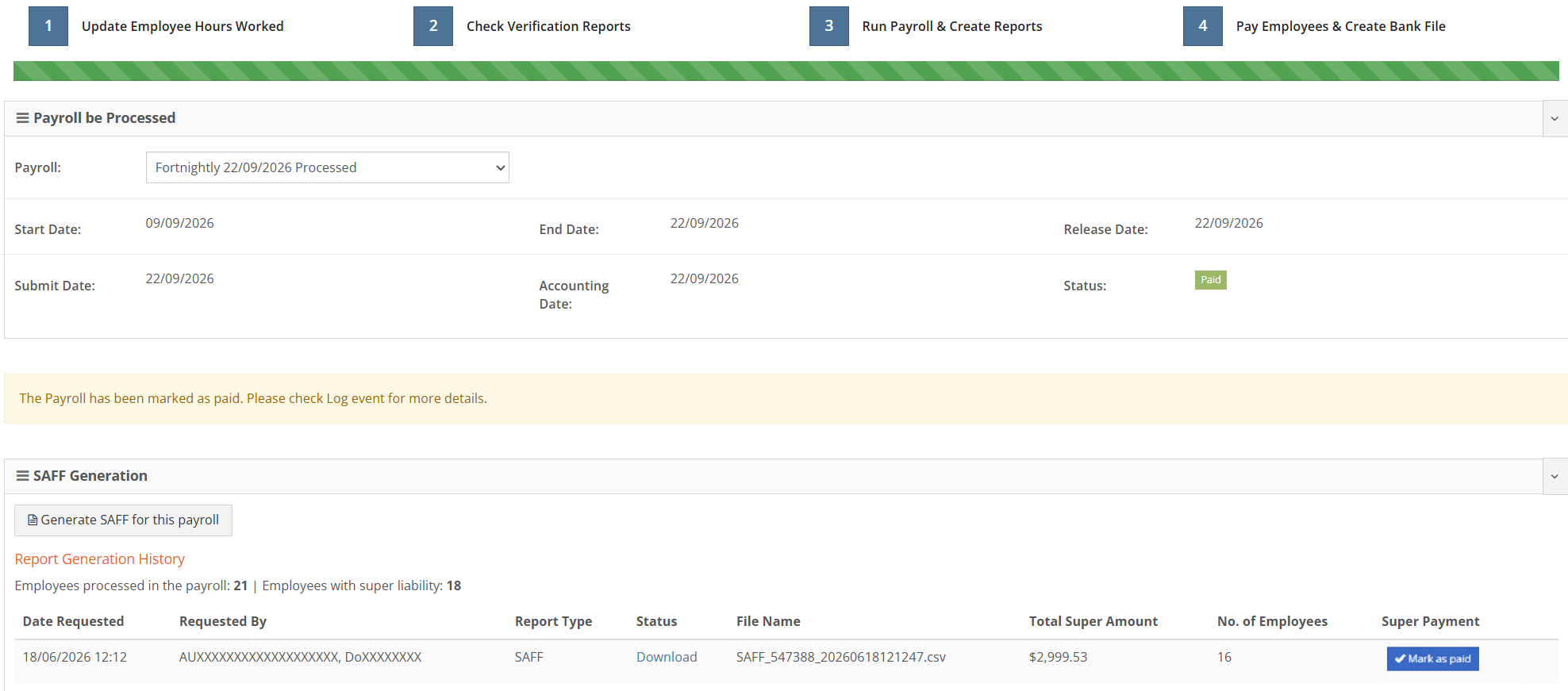
Once a payroll has been paid, a Generate SAFF widget appears under the Payroll Summary. This widget allows you to create a Superannuation Alternative File Format (SAFF) file containing super contribution details for eligible employees.
-
Select Generate SAFF.
Locate the Generate SAFF widget beneath the Payroll Summary. Select Generate SAFF to begin the process.
-
ePayroll identifies eligible employees.
ePayroll automatically determines which employees should be included in the SAFF. An employee is eligible only if all three of the following conditions are met:
- They have a super liability recorded in the payroll
- Their super has not already been marked as paid
- A super fund has been allocated to the employee
Employees who meet all three criteria are included in the SAFF automatically. No manual selection is required.
-
Review and download the generated SAFF.
Once generated, the SAFF appears as a new row in the history table. Each row displays the number of employees included in that SAFF, so you can verify the expected count.
After the file is successfully generated, you can download it in CSV format.
Option 2: Paid Payrolls
After a payroll is processed, you can access the Generate SAFF feature from the Paid Payrolls screen by selecting the payroll.
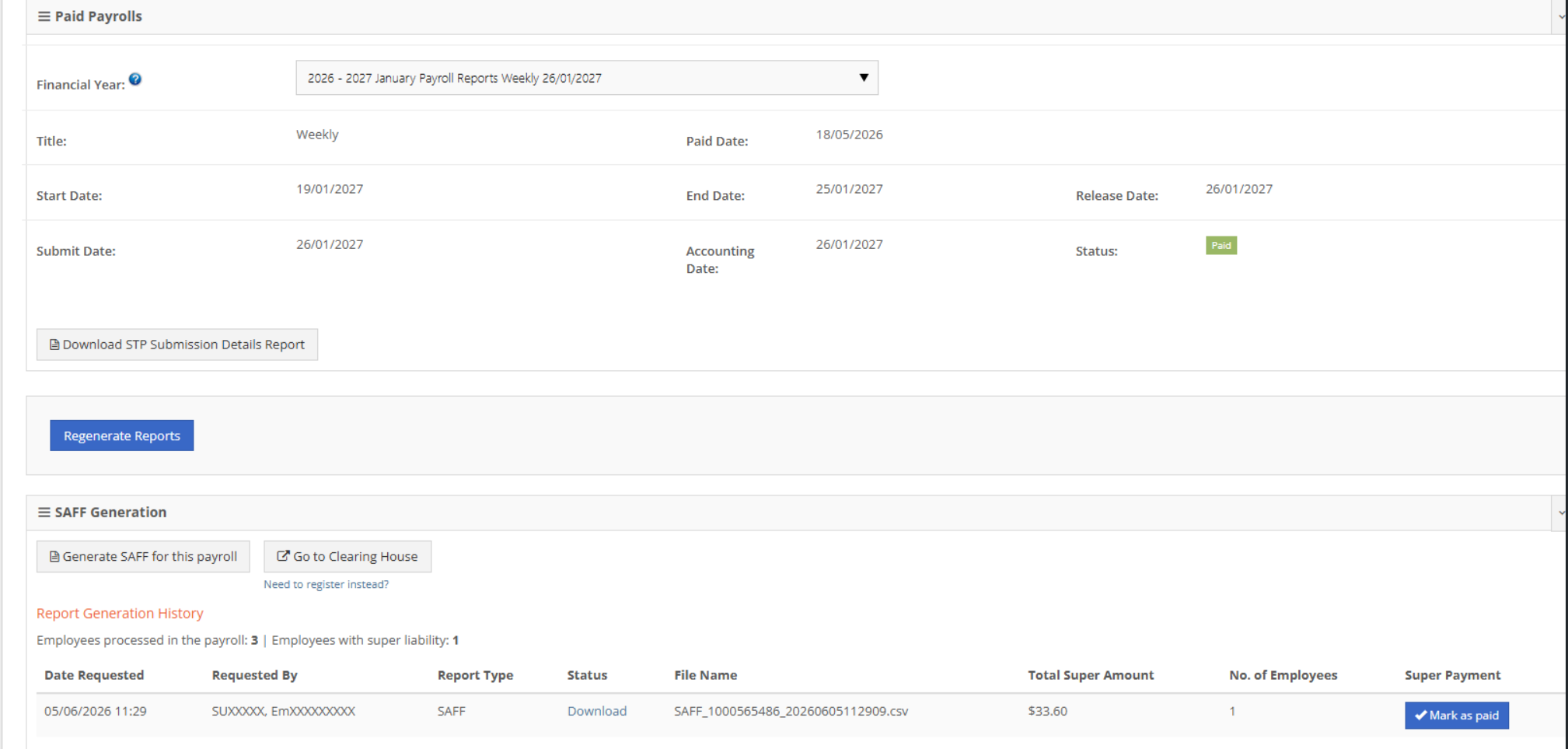
- Open Paid Payrolls and select the relevant payroll.
- Open the SAFF Generation widget to generate a SAFF or find a previously generated SAFF.
- Select Download to save the file again if required.
- If you update employee details and generate a new SAFF, ePayroll identifies any employees who have not previously been marked as paid and have a valid super fund allocated.
Where to Find the Super Liability Report
The Super Liability report is generated for the payroll as part of the Step 3 reports in the payroll wizard. The report shows which employees have super liability and the super amount for that payroll. Employees are grouped by super fund, with a summary included at the bottom.
Troubleshooting
Why are some employees missing from the SAFF?
Check whether an active super fund is allocated to the employee. Also check whether they have super liability for that payroll.
Data changed after download. Can I update the file?
If you have not marked the SAFF as paid, you can generate a new SAFF to reflect the latest payroll details. If the SAFF was marked as paid, ePayroll will only pick up employees who were not part of the previous SAFF and have a super fund allocated.